Rabu, 03 Juli 2013

How to Upgrade to Windows 8 from Windows 7, XP and Vista.


How to upgrade windows 7 to windows 8, or upgrade Windows XP to Windows 8. Continued on tutorial windows 8, this time a little right windows8kita give a tutorial on how to" How to Upgrade to Windows 8 from Windows 7, XP and Vista". After 1.24 Billion Hours Public Test in 190 countries, Microsoft's new Operating System Windows 8 Officially Launched. So now it's time to upgrade to Next Generation Operating System Windows 8. To Use Windows 8 you can do a clean installation of Windows 8 or Upgrade from Windows XP, Windows Vista or Windows 7 to Windows 8.

There are two ways of Upgrade to Windows 8 from Windows XP, Windows Vista or Windows 7:
  1. Download Electronic Software: In this method we are able to upgrade to Windows 8 without using the installation DVD. We can Direct Download Windows 8 Setup from the Microsoft Web site.
  2. Through the Windows 8 installation DVD: In this method we upgrade to Windows 8 using Windows 8 Installation DVD.


The system requirements on Windows 8:
  1. Have processor 1 GHz or more
  2. 1 GB RAM (32-bit) or 2 GB RAM (64-bit)
  3. 16 GB available hard disk space (32-bit) or 20 GB (64-bit)
  4. DirectX 9 graphics device with WDDM driver 10 or higher.

OS support and retainable Products:
  1. Windows 7: Keeping Windows settings, personal files, and applications.
  2. Windows Vista: Maintaining Windows settings and personal files.
  3. Windows XP SP3: Keeping personal files only.

Note - Before you upgrade to Windows 8 Store all your important data to an external storage device.


A. Method 1 - Download Electronic Software

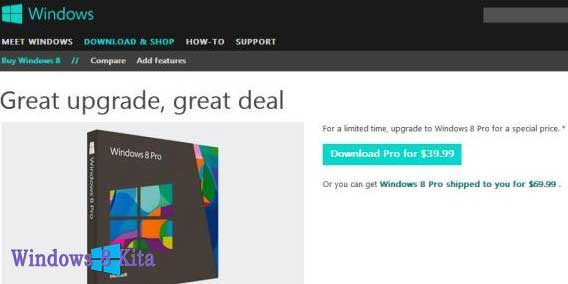
1 - Now you go to the Microsoft Web site and Search Details to Upgrade to Windows 8 in Special Price only $ 39.99, or about Rp 400,000 if in the rupiah.
Upgrade ke Windows 8 Dari Windows 7, XP dan Vista

2 - After clicking Download Pro for $ 39.99 from Windows8-Pop UpgradeAssistant windows will appear. Save and Run-UpgradeAssistant.exe Windows8.

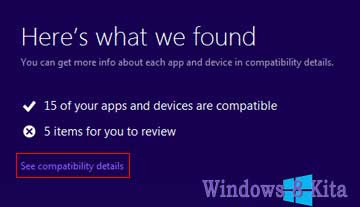
3 - Now Windows8-UpgradeAssistant will run compatibility checks to Inform you of compatible items, and items that are not compatible with your computer to Windows 8. You can check out the full details by clicking Check compatibility details.
Upgrade ke Windows 8 Dari Windows 7, XP dan Vista

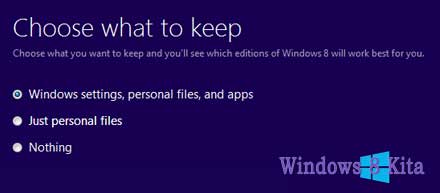
4 - After Checking system compatibility will be asked to choose what data you want to save or import If you are using Windows 7, then you can choose Windows Settings, Personal Files and Apps. But you also can Choose Nothing to Keep.
Upgrade ke Windows 8 Dari Windows 7, XP dan Vista

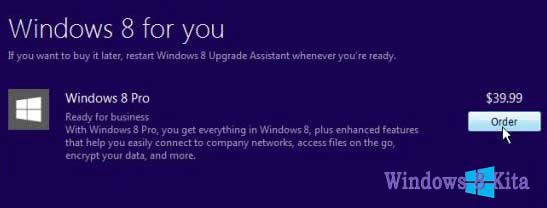
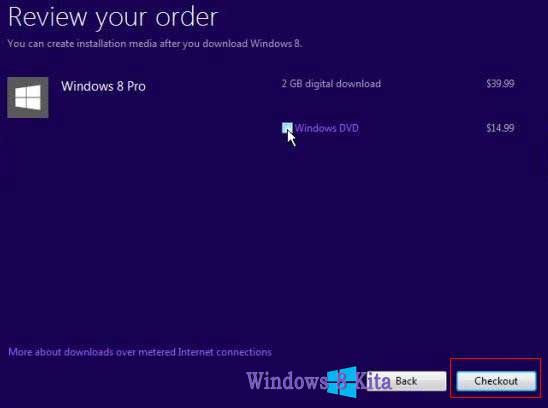
5 - Click Next and Place Your Order for Windows 8 Pro at a price of $ 39.99.
Upgrade ke Windows 8 Dari Windows 7, XP dan Vista

6 - You can also get the Windows 8 installation DVD with Pay an extra $ 14.99. Click the Checkout and Make Payment by Credit Card or Paypal and fill in the required details.
Upgrade ke Windows 8 Dari Windows 7, XP dan Vista

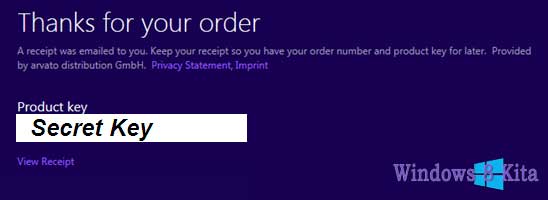
7 - After successfully completing your order, then you will get a Receipt billing and Windows 8 Product Key via email.
Upgrade ke Windows 8 Dari Windows 7, XP dan Vista

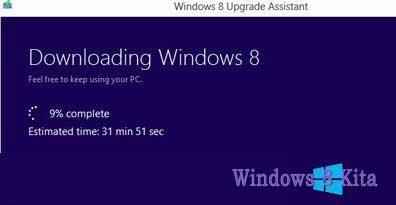
8 - Now Windows 8 upgrade assistant will begin downloading Windows 8 to your computer. It will take some time to download files 2 GB, depending on your Internet speed.
Upgrade ke Windows 8 Dari Windows 7, XP dan Vista

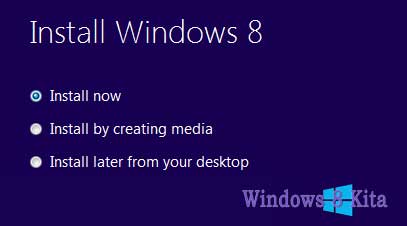
9 - Once the files have been downloaded, you can install Windows 8 soon to select Install now, or you can make a version of it on DVD media or USB by selecting Install by creating media.
Upgrade ke Windows 8 Dari Windows 7, XP dan Vista

10 - Now will tell you about things to consider before you can continue the installation. Uninstall first item is not compatible for Windows 8, and then click Restart to continue the installation.

11 - Now you will get the last change to make changes in the settings, if you are satisfied with your settings, then just click Install and Upgrade Your Computer to Start into the next generation Operating System Windows 8.
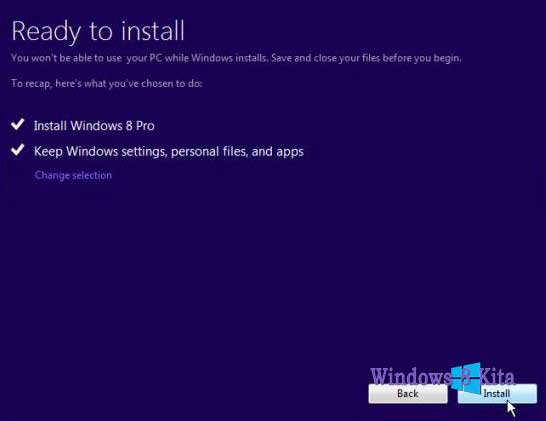
Upgrade ke Windows 8 Dari Windows 7, XP dan Vista

12 - Done!


B. Method 2 - Windows 8 Installation DVD

1 - First Enter Windows 8 Dvd Drive Installation to DVR or Blu-ray reader and run the setup.exe file.

2 - Windows 8 Setup to Begin Run.

Upgrade ke Windows 8 Dari Windows 7, XP dan Vista

3 - Select Go to online to install the update now and click Next.
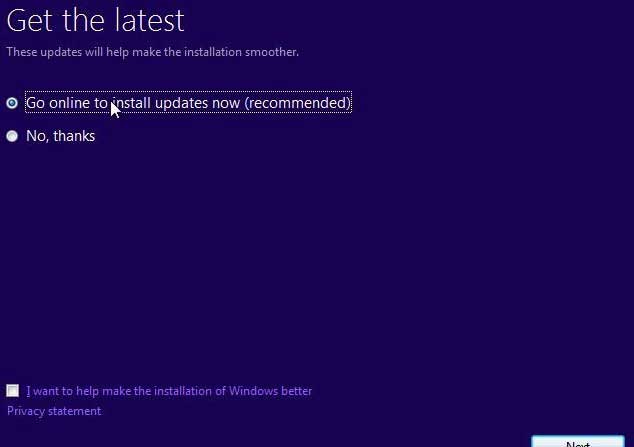
Upgrade ke Windows 8 Dari Windows 7, XP dan Vista

4 - Enter Product Key and click Next.
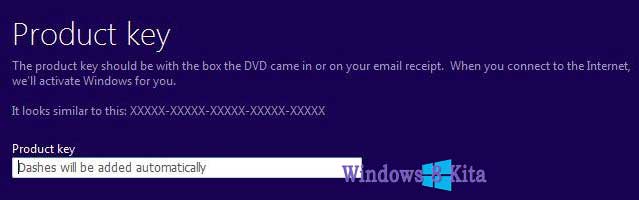
Upgrade ke Windows 8 Dari Windows 7, XP dan Vista

5 - Read and Accept Terams License and click Accept.

6 - Select the settings that you want to save during the upgrade and click Next.
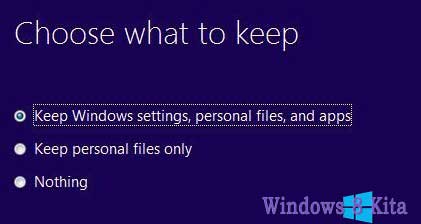
Upgrade ke Windows 8 Dari Windows 7, XP dan Vista

7 - Now Microsoft will check that your system is ready to upgrade or not, and notify you if any item is not compatible with Windows 8.
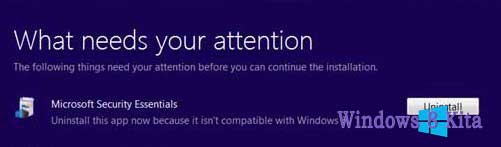
Upgrade ke Windows 8 Dari Windows 7, XP dan Vista

8 - If you find a program that does not fit the Uninstall incompatible item and then click Install to Start Upgrade.
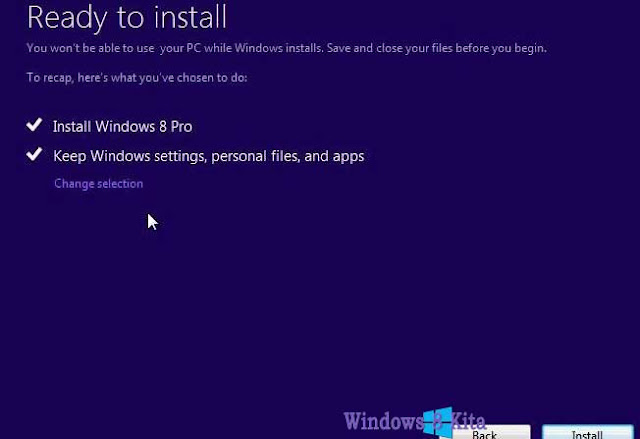
Upgrade ke Windows 8 Dari Windows 7, XP dan Vista

9 - Now the installation process will Start, Wait for the installation process is complete. During the installation process the system will require a reboot several times.
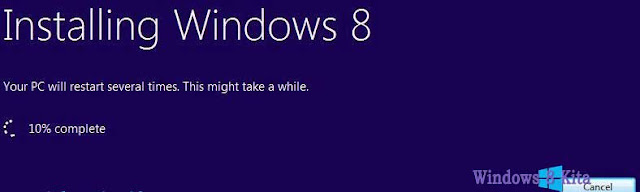
Upgrade ke Windows 8 Dari Windows 7, XP dan Vista

Important Note - Please do not perform other tasks during the installation and wait until Windows 8 setup is complete.

10 - Now Personalize process starts, you can Personalize your computer the same way we did during the installation of Windows 8 on the tutorial link below.

Congratulations upgrade has been done, and your files, settings, and applications have been migrated according to your settings.

Selasa, 02 Juli 2013

Clean htm and html injected Ramnit (HTM file repair / HTML Ramnit infected).


At this time many outstanding tools that can be used to eradicate Ramnit, but the tools to make a computer immune Ramnit Vaksincom just got. Techniques to make a computer immune Ramnit can only be found if you have enough flight hours in the field of eradication of the virus. If you feel this is enough, we inform you that there is still one important issue related to the Ramnit virus again and this problem can not be solved by any antivirus program. Does it matter?

When it comes to rooting Ramnit from the infected computer, these days many tools antivirus that can eradicate output. One of them is that you can use Norman Malware Cleaner for Ramnit that besides eradicate Ramnit which raged on your computer as well to reform the registry was changed by Ramnit. 

If you think these two things are enough to overcome Ramnit (read our previous article), chances are you've never dealt with Ramnit. There is still one more thing that caused by Ramnit dizzying, especially regarding the web server containing htm or html file. As we know, one method is to inject the spread of Ramnit file htm / html which aims to spread itself through file htm / html is opened by a victim computer browser. So if he manages to inject webserver, then anyone who accesses the webserver will be infected by just opening the file htm / html on the webserver. 

More sorry again if you are a webmaster or webdesigner's a lot to deal with htm or html file(re. Once the computer / server Ramnit infected then all htm and html files will be in the injection by Ramnit and the bad news is that to date antivirus program considers all htm and html files in the injection by Ramnit are like fugitives who flee to Colombia and will mercilessly in quarantine or delete. When in fact htm and html files can still be cleaned up so it does not need to start from scratch again. 

Once again Vaksincom hand with expert coding of the town gudeg, Yayat make tools to save htm and html files in the injection by Ramnit. So there should not break if you delete antivirus program htm or html file you are, there is still Vaksincom. And the good news. The tools we provide Free to you. Besides having the ability to clean htm and html files of Ramnit, Vaksincom also include a special routine into the tools so that with just a single press of a button, you can make your computer immune from attack Ramnit. Hopefully with these tools in Indonesia spread of Ramnit can press.

Actually on the internet there are many good-hearted people like prof. Xavier. Tools htm and html file cleaning of injection Ramnit ever made by Jing Ge by name Malware Remover Script VB Dropper. (See figure)

Fix the HTML file with VB Script Malware DropperRemover

This tool is made specifically for the repair file HTML / HTM that have been infected Ramnit and from the results of testing the tool powerful enough HTM file repair / HTML Ramnit infected, but there are a number of requirements that must be met in order to run this tool on a computer which program should be installed Java. And this tool does not contain the "magic" that makes computers immune to Ramnit.

Link download VBSDropperRemover


Chanet Splitter II, capable of fixing file HTM / HTML were infected. 
Maybe you still remember the Kespo virus, where the virus has the ability to inject Ms Office file that has the extension. Doc and. Xls. At that time many local antivirus vying to create tools that can repair files that are already on the injection by one of them is Kespo Tools Chanal SPLITTER works of Yogya Yayat man who was in publishing by Vaksincom in 2007 (http://www. vaksin.com/2007/0607/Kespo-gang_ref.htm).

Now with the emergence of Ramnit, he returned to make tools with names Chanet SPLITTER II are used to improve file HTM / HTML that has been infected with Ramnit. This tool can search for files HTM / HTML quickly to drive / folder that we specify and fix it so that the file can be reused without removing it.

Here are some of the advantages possessed by Chanet SPLITTER II are: (see figure )
  1. Remain FREE.
  2. Able to find and kill the Ramnit are active in memory automatically when Chanet SPLITTER on the run
  3. Able to repair registry altered by virus
  4. Ramnit was able to remove the master file
  5. PC protection order to be immune from Ramnit
  6. Protection that does not make the Ramnit virus file to USB Flash
  7. Finding and fixing file HTM / HTML Ramnit infected

Chanet Splitter II, capable of fixing file HTM / HTML were infected with Ramnit

Vaksincom thank you for the time, dedication and knowledge that have been donated in order to create tools Chanet SPLITTER II, may be able to help the victims who had been infected with Ramnit. If you want to participate and make tools exterminator virus, do not hesitate to contact us at info@vaksin.com, Vaksincom will give you the information you need support but are sorry we do not promise material rewards. Reward will you get is happiness can help computer users as well as victims of viruses and prayer sincere gratitude for helping fellow computer users.


Ramnit way to completely eradicate:
  • Disconnect the computer from the network in order to prevent re-infection.

Use the tools Chanet Splitter II if you want to make your computer immune from Ramnit with one button at the same time improve the HTM file / HTML injection by Ramnit and can not be cleaned / the delete by antivirus / virus other cleaner. Download Chanet Splitter II of
http://www.vaksin.com/2011/0811/immune from ramnit / Chanet SPLITTERII.exe

IMPORTANT!!!

Chanet Splitter II is made in good faith to help the computer users who experience problems with Ramnit. PT. Vaksincom testing tools already do this on multiple computers with different operating systems like Windows XP, Windows Vista and Windows 7 and found no problems and the tools can be run well on OS-operating system in our lab test. BUT it is also possible that the tools we make are not compatible with the OS you're using and can cause system instability or data loss. Therefore, for the safety of your data we expect you to backup your data in the computer properly. PT. Vaksincom and tools manufacturer is not responsible for any damages caused either directly or indirectly, for the use of these tools.

  • We include tools that is ONLY used to improve file HTM / HTML that has been infected with Ramnit alone. To clean the EXE file / DLL on the computer systems that are already infected Ramnit you can use Ramnit Cleaner Norman (special cleaner Ramnit) or Norman Malware Cleaner which can in http://www.vaksin.com/2011/0811/immune from ramnit / Norman_Ramnit_Cleaner.exe then scan including Full HDD Removable Media (USB Flash / External HDD) using updated antivirus to clean the EXE file / DLL is already infected. If Norman Ramnit Cleaner has expired, please download Norman Malware Cleaner is able to eradicate all viruses (not just Ramnit) of http://normanasa.vo.llnwd.net/o29/public/Norman_Malware_Cleaner.exe


  • It is advisable to install the Windows security patch (MS10-046 KB2286198)

How to make your PC Ramnit immune to attacks?


Protect Your PC.
From the results of analysis currently Ramnit virus "always" use the master file with the same name ie "watermark.exe" although its storage location varies depending on the variant that infects the computer and create a file "Explorermgr.exe" which are in directory [C: \ Windows], the file "Explorermgr.exe" is created if Ramnit successfully infect file "Explorer.exe". Computer so that you do not become victims of violence Ramnit, here are some tips and tricks for your computer to be immune from attack Ramnit.


  • Create a dummy folder (empty folder) with the name "watermark.exe" and "svchost.exe" in the usual location in the drill by a virus, then change the file attributes to Hidden, System and Read Only. This step is done so that Ramnit can not make the main virus file in the same location.
  • Create file "Recycler" on each drive, then change the attributes to Hidden, System and Read Only. This step is done so that Ramnit can not create master files (such as EXE extension and CPL) file into RECYCLER. RECYCLER because this form of file (not a FOLDER) then it will not be able to make the Ramnit virus file in that location.
  • Make 2 (two) registry key in the following location:

HKEY_LOCAL_MACHINE \ SOFTWARE \ Microsoft \ Windows NT \ CurrentVersion \ Image File Execution Options (see figure )
Key: Explorermgr.exe and watermark.exe
String value: Debugger
Type: REG_SZ
Data value: ntsd-d

String registry to block Ramnit that can not be active on the computer


  • This step is done, so that the script / code which is on file virus Ramnit virus can not be executed, so that Ramnit can not be active in memory.


Protect Your USB Flash Media.
As noted previously, Ramnit also will spread itself by utilizing USB Flash media by making a virus file, the following tips and tricks for Ramnit can not create a master file into a USB Flash Media

  • Especially for files with the extension EXE / DLL / HTM / HTML should compress using the program WinZip / WinRAR so that the virus does not infect the file, if necessary use a password.
  • Create an empty folder with the name [autorun.inf]. In order for the [autorun.inf] is not removed by virus created an empty folder in the folder [autorun.inf] with a character that is not recognized by Windows such as CON and NUL. If the folder [autorun.inf] The failure will be deleted by displaying an error message. Should change the attributes to Hidden, System and Read Only (see figure )
Creating autorun.inf file
The error message when deleting a file autorun.inf

  • Create an empty folder with the name "Copy of Shortcut to (1). Lnk", "Copy of Shortcut to (2). Lnk", "Copy of Shortcut to (3). Lnk" and "Copy of Shortcut to (4). lnk ", then change the attributes to Hidden, System and Read Only.
  • Create file "Recycler", then change the attributes to Hidden, System and Read Only.
  • Create an empty folder with the name MSO.SYS, then change the attributes to Hidden, System and Read Only.